Where Did the Checkmarks Go?
NCE replaces Classic Content this fall. Learn where completion indicators went and how to set up manual tracking before the switch.

If you haven’t already encountered Brightspace’s New Content Experience (NCE), you will soon. Starting Fall 2026, and more specifically, after August 17, the NCE becomes the standard interface for all courses on campus. This summer, you can still toggle between Classic Content and the new experience. But once that toggle disappears, the NCE is what you and your students will see.
And there’s a good chance some of them will ask some version of this question: “Where did the checkmarks go?” Understanding what changed, and what to do about it, will save you and your students a lot of confusion.
While in the Classic Content Experience, completion tracking was woven directly into the content view, the NCE offers a more streamlined and flexible way for students to move through course materials. But like any new environment, it benefits from a little orientation. The familiar checkmarks haven’t disappeared entirely; they have simply moved and become more intentional.
Progress Indicators Have Evolved
In the NCE, completion tracking still works. It just looks different. Students now have two places to see and interact with their progress.
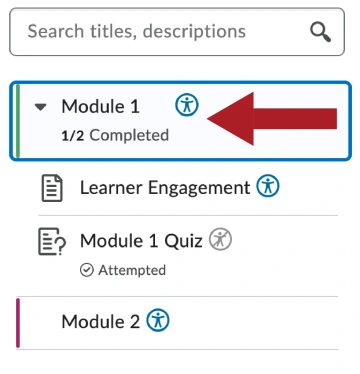
The first is the Table of Contents (ToC) sidebar. As students work through the course, it displays completion indicators for the items they’ve finished, as well as a progress counter at the module and unit level, showing how many topics they’ve completed out of the total. These update based on whatever completion tracking method you’ve configured (automatic or manual).
The second is at the bottom of each content page, where students can actively mark an item as complete when they feel they’ve genuinely finished with it. This only appears on topics configured for manual tracking. Once a student clicks it, the button disappears and a confirmation message takes its place, a small but satisfying signal that the item is done.

For instructors, there are two main ways to monitor completion. For graded activities, including assignments, quizzes, and discussions, the Completion Summary displays automatically when you select one of those items in Content. It shows real-time data on who has submitted, their grade, and links to evaluate directly or email students who haven’t yet engaged. For all other content types, completion and access data lives in View Reports, accessible via the gear icon at the top of the Content sidebar.
One important note on the Completion Summary: it displays student data by default and stays expanded as you navigate through Content, resetting to expanded each time you return. Use caution when broadcasting your screen in class to avoid inadvertently sharing student information.
Setting Students Up for Success
This shift creates an opportunity to think more intentionally about how students navigate your course. A short note in your syllabus or a quick announcement that highlights progress tracking can help students build confidence and establish effective course habits. Point out the completion indicators in the ToC sidebar and, if you’re using manual tracking, the “Mark as Complete” button at the bottom of each page. A few small adjustments before the semester begins can help students take full advantage of the new experience and make the transition easier.
Setting Your Course Up for Success
For your non-assessable content, such as pages, files, web links, SCORM, and ELT topics, like FeedbackFruits and WeVideo, consider switching completion tracking from automatic to manual, a setting you’ll find in the Completion accordion when you create or edit a topic. By default, Brightspace marks an item complete the moment a student opens it, which doesn’t mean they’ve actually engaged with it. Manual tracking puts that call in the student’s hands. It also sidesteps a gap in automatic tracking: activity in external learning platforms is invisible to it, no matter how much time a student spends there.
Keep in mind that manual completion is not available for assessable activities like assignments, quizzes, and discussions, or built-in tools like checklists and surveys; those are tracked automatically by the tool itself. Students will see a “Submitted” checkmark next to those items in the ToC once completed, and can view their completion status in the Completion Summary clicking on the activity within the module. One important caution: don’t change this setting mid-semester. Switching resets all prior completion data for that topic; students won’t lose any submitted work, but they will need to return to mark those items complete again. Set it before your course goes live and leave it.
Take a look at your course and ask yourself: if a student landed here with no orientation, would they know what to do? If not, a brief “Start Here” module might be all it takes. The NCE is coming with real advantages, and making the most of them just takes a little intention before the semester starts.