


Student voices fuel improvement.
Students are in a unique position to provide formative feedback to instructors. Their first-hand learning experiences can provide valuable information on many aspects of the course: what practices facilitated their learning and what challenges they faced. As an instructor, you can use this feedback to refine and adapt your teaching methods and strengthen your classroom-assessment skills.
What’s New
The Course Evaluations & Surveys by Watermark make it easier to:
- Collect meaningful feedback from students.
- Give faculty real-time reporting through an easy dashboard.
- Boost response rates with simple reminders.
- Integrate seamlessly with Brightspace.
- Share data with other tools, like Planning & Self-Study.
How It Works
- Students receive an email when their survey opens.
- Surveys are accessed directly from the email link or through Brightspace.
- All submissions are anonymous.
- Results are released after final grades are posted.
Student Course Survey Questions
Survey Schedule
Fall 2026 (2264)
| Session | Survey Opens | Survey Closes | Reports Available |
|---|---|---|---|
5W1 | Sept 15 | Sept 24 | Oct 15 |
7A | Sept 27 | Oct 10 | Oct 31 |
7W1 | Sept 30 | Oct 13 | Nov 3 |
5W2 | Oct 20 | Oct 29 | Nov 19 |
16W | Nov 4 | Dec 2 | Dec 23 |
7B | Nov 22 | Dec 5 | Dec 26 |
7W2 | Nov 25 | Dec 9 | Dec 30 |
5W3 | Nov 29 | Dec 9 | Dec 30 |
| 1-Reg | Nov 11 | Dec 9 | Dec 30 |
For Instructors
Find information on accessing reports and FAQ’s for instructors and department personnel.
- Log in to the Watermark system using your NetID and password.
- On the landing page, go to the Project Results dashboard.

- Select the appropriate term-session.
- A table with the course information will populate with a link to download the report for each course in the right-most column.
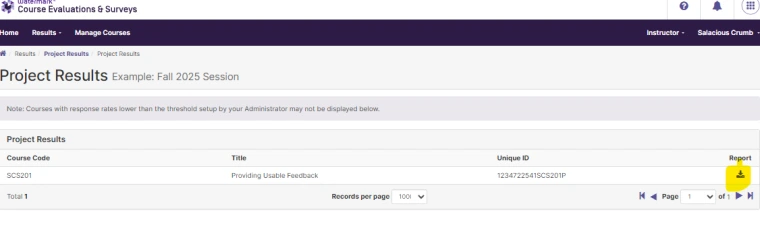
- After selecting the download button, you'll see a drop-down with options.

- The report will download as a PDF.
- Repeat for each course you taught during the semester.
- Once logged into Annual Profile, navigate to Activities in the left menu
- Expand the Teaching: Credit Bearing Courses section and select View Teaching.
- Scroll to Section C: Course Attachments, and select Add next to the course for which you are adding the report.
- Take the following action in the pop-up window that appears:
- Select File as the Attachment Type.
- Select Attach and select the PDF file you wish to attach.
- Select Course Evaluation for the type of evaluation.
- Select Upload to complete the process.
We are here to help! If you experience issues accessing or uploading your Student Course Surveys, please contact Becky Pérez.
For Students
Find information on completing the survey, accessing reports, and FAQ’s for students.
Implement Changes
Not only can we help you understand the meaning behind student course survey results, but we can also offer suggestions for an improvement strategy. If you need guidance devising new strategies, our Educational Development team can help.